


Your phone says storage is full. Your inbox has a number on it that makes you wince. And somewhere in 14,000 photos is the one picture of your dog’s first day home.
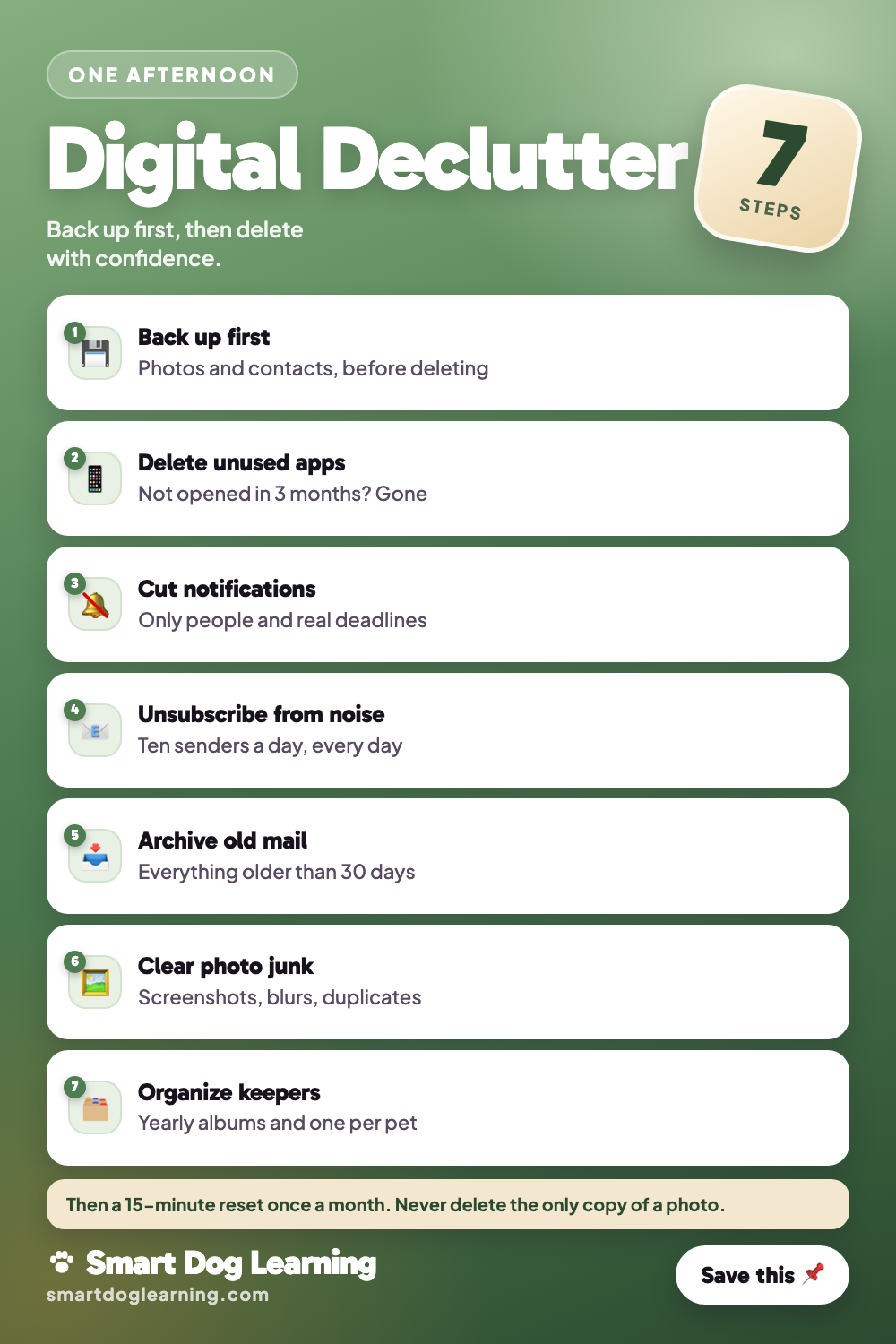
A digital declutter fixes all three in one afternoon. This 7-step checklist walks you through your phone, your email and your photos, in the order that keeps you from losing anything important.
Why order matters
The most common digital declutter mistake is deleting first and backing up later. Don’t do that.
- Back up so nothing is lost.
- Delete the obvious junk.
- Organize what’s left.
- Set habits so it stays clean.
Give yourself two or three hours. You can also split it into three short sessions, one per section. Put on music, make a coffee and keep your charger close, because backups can drain a battery.
Step 1: Back up before you touch anything
Make sure your photos, contacts and messages exist somewhere other than your phone.
- Turn on your phone’s cloud photo backup and let it finish on Wi-Fi.
- Check that contacts sync to your account, not just the phone.
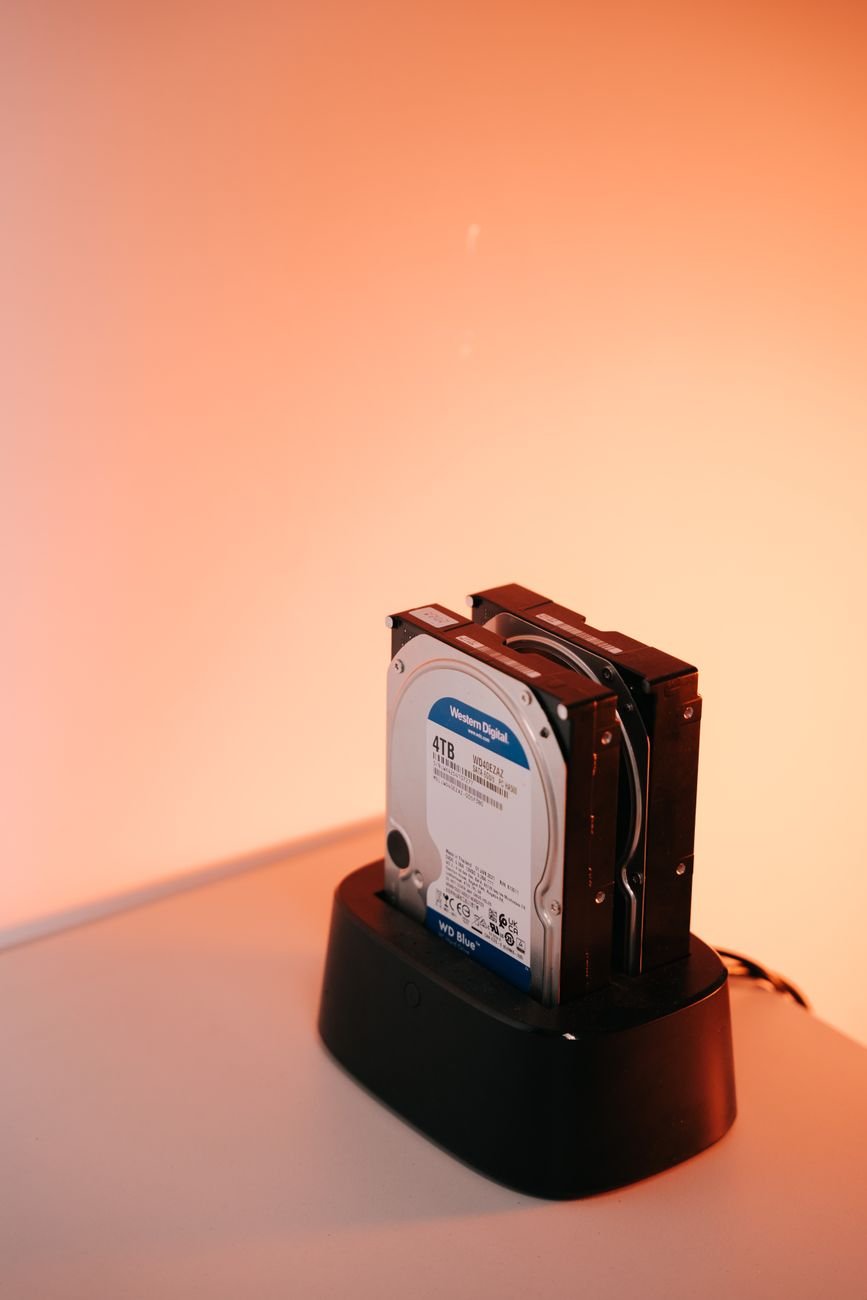
- For extra safety, copy your photo library to a computer or an external drive.
Open your backup on another device and spot-check a few recent photos. If they’re there, you’re ready.
Step 2: Clear out your apps
Scroll through every screen and ask one question: have I opened this in the last three months?

- A never-mix chart: the cleaner combinations that make toxic fumes
- A surface guide: what not to use on stone, wood, cast iron and more
- 5 starter cleaners and a shopping list
- Delete games you finished, shopping apps you used once and duplicate tools.
- Cancel subscriptions before deleting the app. Deleting it doesn’t stop the charge.
- Keep anything you need for banking, health, work or travel.
Then arrange what’s left. Put daily apps on the first screen and move everything else into a few simple folders.
Step 3: Tame notifications
Notifications are clutter you hear. Go to your settings and turn most of them off.
- Keep on: calls, texts from real people, calendar alerts, your vet’s reminders.
- Turn off: shopping deals, game rewards, news alerts you never read.
- Batch the rest: use a scheduled summary or Do Not Disturb hours.
Honestly, this step alone makes your phone feel calmer.

Bonus: clean up texts and downloads
Message threads and downloads quietly eat storage.
- Set old messages to auto-delete after a year if you don’t need them.
- Delete big video files from group chats.
- Clear your downloads folder of old PDFs, receipts and boarding passes.
- Save anything you need to keep, like a lease or warranty, into a “Documents” folder first.
Step 4: Unsubscribe from the noise
Your inbox fills up because you keep getting mail you never asked to read. Stop it at the source.
- Search your inbox for the word “unsubscribe”.
- Unsubscribe from ten senders a day. It adds up fast.
- Keep the two or three brands you actually buy from.
- Use a filter to send the rest to a “Promotions” or “Read later” folder.
Only use real unsubscribe links from senders you recognize. If an email looks like spam, mark it as spam instead.
Step 5: Get to a clean inbox
You don’t need to read 6,000 old emails. You just need them out of your way.
- Archive everything older than 30 days in one go. Archived mail is still searchable.
- Make three folders: To do, Waiting on, and Keep.
- Handle new mail once: reply, file, archive or delete.
A tidy inbox is a much easier place to find the email from the boarding kennel or the adoption paperwork.

Step 6: Declutter your photos
Photos are the hardest part because they’re emotional. Start with the easy wins.
- Screenshots: most are useless after a week. Delete them in bulk.
- Duplicates and bursts: keep the best one, delete the rest. Many phones find duplicates for you.
- Blurry shots and pictures of your pocket.
- Old videos you’ll never watch again. These take the most space.
Heads up: if your photos sync to the cloud, deleting on your phone usually deletes them there too. Deleted photos sit in a “Recently deleted” album for a while, so empty it only after you’re sure.
Step 7: Organize the photos you keep
A few albums make your favorite memories easy to find.
- One album per year with the best 50 to 100 shots.
- An album for each pet. Trust me, you’ll want it on their birthday.
- A “Documents” album for photos of IDs, insurance cards and vaccine records.
- Favorite the photos you’d want to print someday.
Bonus: contacts, calendar and cloud storage
These three are easy to forget, but they get messy too. Give each one ten minutes.
- Contacts: merge duplicates and delete numbers you don’t recognize. Add your vet, your dog walker and a neighbor who has your spare key.
- Calendar: delete old repeating events you don’t go to anymore, and add the yearly ones that matter, like vaccine boosters and license renewals.
- Cloud storage: sort by file size and delete big files you don’t need. Old phone backups are often the biggest.
If you share a family account, check with everyone before deleting shared folders. Ask first, delete second.
Make a pet folder while you’re at it
This is the bonus step pet owners love. Gather everything about your dog or cat in one place.
- Vaccine records and the rabies certificate
- Microchip number and the registry login
- Vet and emergency clinic phone numbers
- Pet insurance policy
- A clear, recent photo in case they ever get lost
Keep it in a cloud folder you can open from your phone at the vet or the kennel.
Keep it from coming back
Digital clutter returns quickly. A little maintenance keeps it in check.
- Daily: delete screenshots once you’ve used them.
- Weekly: zero out your inbox on Friday.
- Monthly: a 15-minute reset of apps, downloads and photos.
Pair it with your physical spaces. These home organization ideas room by room work well alongside a clean phone, and so does decluttering one room at a time.

Common questions
How long does a digital declutter take?
About two to three hours for phone, email and photos. You can split it into three short sessions.
Will archiving emails delete them?
No. Archived emails leave your inbox but stay searchable in your account.
What should I delete first to free up phone storage?
Old videos, unused apps and big files in message threads usually free up the most space.
Is it safe to delete photos after backing them up?
Only if the backup is a separate copy. With a synced library like iCloud Photos, deleting on your phone deletes it everywhere, so keep a copy on a computer or drive too.
How often should I do a digital declutter?
A big one once or twice a year, plus a short monthly reset.





Leave a Reply